
UTM Parameters: What They Are & How to Use Them


Your analytics dashboard says “social.” Helpful — but which post actually earned the click?
A label that vague tells you something worked, but not what. Surface-level buckets don’t tell the whole story.
You need something to dig deeper. UTM parameters help you do just that. These small text tags label your links with the campaign that sent each click, so you can see how customers actually find you, as long as you tag consistently.
But first, what the heck are UTM parameters?
What are UTM parameters?
UTM parameters are short text tags added to the end of a URL that tell your analytics platform how to label a click’s source, channel, and campaign. Standard parameters (source, medium, campaign, term, and content) record which platform, channel, campaign, keyword, and creative drove each visit, so your reports show named sources instead of vague buckets.
The name is a leftover: UTM stands for “Urchin Tracking Module,” because the tags were introduced by Urchin, the predecessor to Google Analytics — which is why Google Analytics supports them out of the box. They’ve since become a de facto standard: analytics platforms beyond Google, including Adobe Analytics, parse the same tags to populate their reports.
Here’s the problem they solve. You already track your website visitors with Google Analytics.
However, when someone clicks a link to your site from Instagram, most analytics platforms can only tell you they came from “Organic Social.”
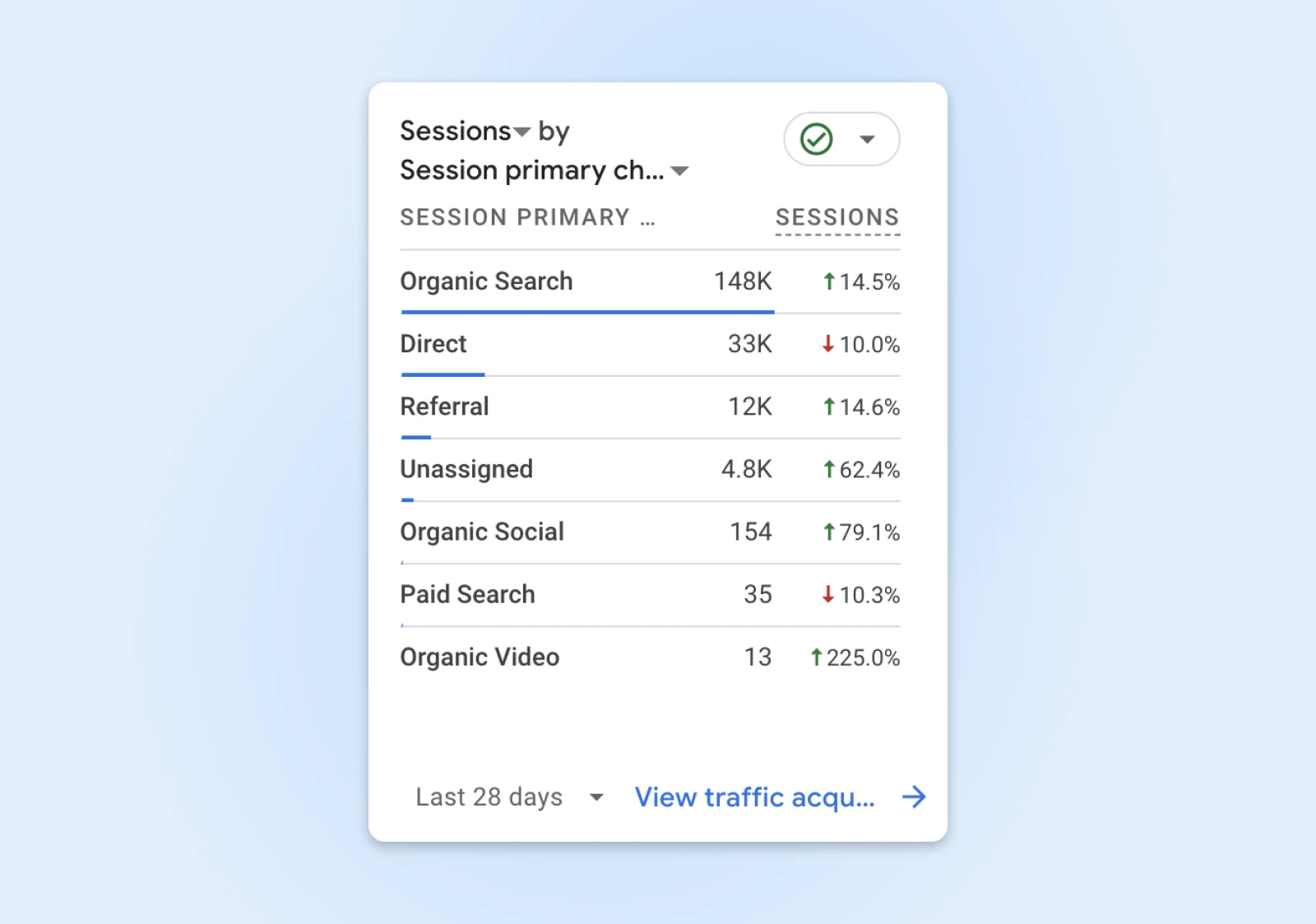
Alas, you can’t be sure if the clicks came from your latest tweet, LinkedIn article, or Instagram story from last week.
Without this knowledge, you don’t know what platform is actually sending traffic to your website.
If you add unique UTM parameters to the links you post on social media platforms, your analytics platform can clearly show where a certain click came from.
Look at this link with UTM parameters:
https://www.dreamhost.com/hosting/?utm_source=facebook&utm_medium=social&utm_campaign=spring_sale_2026
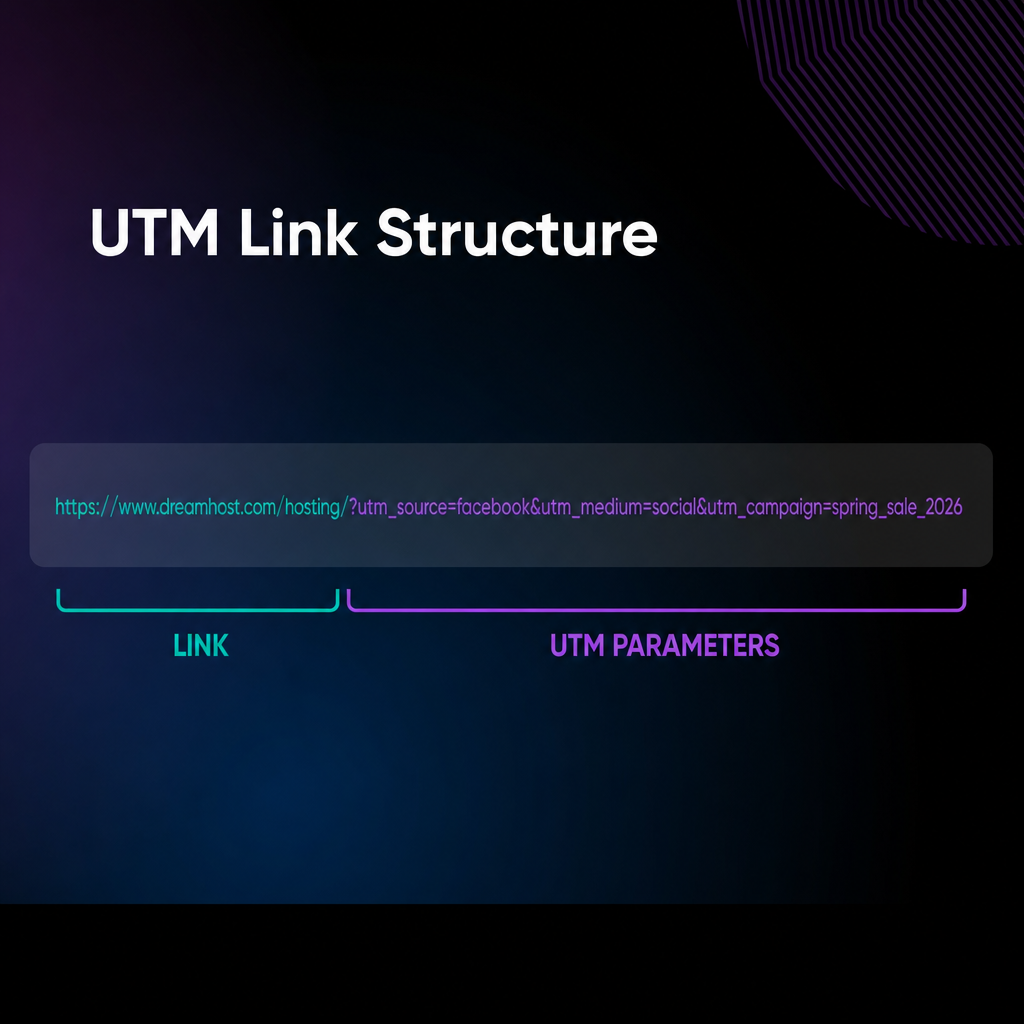
- Everything before the “?” is the base URL.
- Everything after it (the UTM parameters) carries tracking information.
When you create tagged links for each post, you get to see which platform and what content drives engagement.
With these links created for each of your social media posts, you can see which post from which platform resulted in a click, provided you’ve tagged every link consistently.
In Google Analytics, you’ll see the names you’ve added for these UTM parameters. That credit also sticks around: the campaign is attributed to the visitor’s session and subsequent sessions until the attribution window expires, so a later untagged visit can still show up under the original campaign. For key events specifically, GA4’s key event lookback window (how far back a touchpoint can earn credit toward a key event) defaults to 30 days for acquisition key events and 90 days for all other key events, per Google’s attribution settings documentation.
In GA4, open Reports > Acquisition > Traffic acquisition (or the pre-made Manual campaigns report) and set the primary dimension to “Session manual source.”
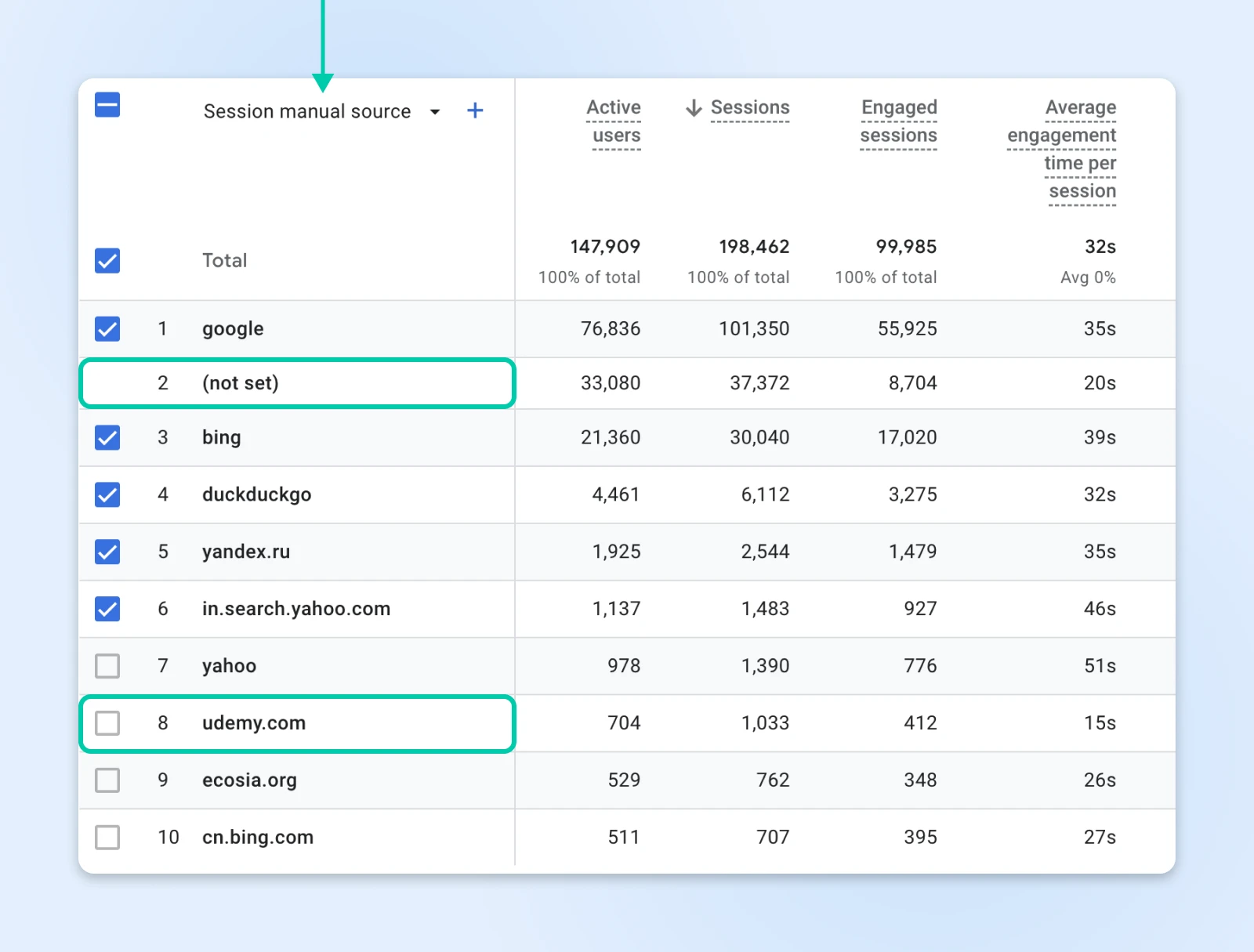
Clicks that arrive with no UTM parameters and no identifiable referrer get grouped into the (not set) source. For the rest, you’ll see the appropriate source names. If you want to dig deeper, you can use Google Search Console to find out the keywords driving traffic.
Note that not all of these values come from manual tags: Google Analytics derives the source for untagged clicks from the referrer (and from auto-tagging, like Google Ads’ GCLID), which is why search engines such as Google and Bing still show up by name.
What information can UTM links carry?
Each click on a UTM link carries information about where a click came from, which campaign triggered it, and even which specific element caught your visitor’s attention. It all depends on how you build out the link (yes, it’s manual work).
Say you have this link to promote on social media:
“https://www.dreamhost.com/hosting/”
Clicking on this link right now will only provide vague information like “social” or “organic” in analytics. Here’s how you can add data to the link:
1. Campaign source (“utm_source”) – Required
The “utm_source” records where your visitors originated.
When you mark a link with “utm_source=newsletter,” you’re essentially saying, “This visitor came from our email list.”
Mark it as “utm_source=instagram” instead of newsletter, and Google will show the source as Instagram (even if the click actually came from your newsletter).
2. Campaign medium (“utm_medium”) – Required
With “utm_source,” you know where a user came from.
But did they arrive via a paid advertisement (“utm_medium=cpc”)? Through an organic social media post (“utm_medium=social”)? Or perhaps through your email marketing efforts (“utm_medium=email”)?
Setting “utm_medium” will help you determine the vehicle through which the traffic was delivered.
3. Campaign name (“utm_campaign”) – Required
You know that a click is coming from a marketing email, but you don’t know which one.
Your campaign name serves as a way for you to identify exactly which campaign sent this click.
This also helps you with conversion rate optimization (CRO) as you can tag each CTA uniquely, giving you data on which CTA in which newsletter (or any other marketing material) was clicked.
Conversion Rate Optimization (CRO)
Conversion Rate Optimization (CRO) refers to any practice geared toward improving the number of conversions that you get from websites, email campaigns, and ads.
Read More
For instance, “utm_campaign=spring_sale_2026” groups all traffic related to your spring promotion, regardless of source or medium.
4. Campaign ID (“utm_id”) – Optional
The campaign ID parameter lets you attach a unique identifier to your campaign.
It’s handy when your marketing efforts need that extra layer of detail. Using “utm_id,” you can distinguish between similar campaigns or sub-campaigns that share the same source, medium, or campaign name.
For example, if you run a spring sale across multiple platforms, assigning each variation a unique ID helps track which performs best.
5. Campaign term (“utm_term”) – Optional
For paid search campaigns, “utm_term” records the keyword you tag the link with — Google defines it as the paid keyword, and dynamic-insertion macros in your ad platform can auto-fill the actual term.
This gives you visibility into which search terms drive valuable traffic, helping you refine your bidding strategy. If you’re targeting multiple keywords in a campaign, tagging each with “utm_term” lets you compare performance.
Running Google Ads with auto-tagging turned on? You can skip manual tags for GA4 reporting: when a link carries both a GCLID and UTM parameters, GA4 uses the auto-tagged values for source, medium, and the other traffic-classification dimensions, per Google’s traffic-source documentation. Manual UTMs still matter when a non-Google analytics tool needs to read your campaign data, since auto-tagging is a signal only Google’s products understand.
For example, if you’re running ads for web hosting and want to track the keyword “best hosting,” you can add “utm_term=best_hosting” to the link.
With this, you can see which keywords attract clicks, and optimize your paid search efforts accordingly.
6. Campaign content (“utm_content”) – Optional
The “utm_content” parameter is useful for A/B testing.
If you have multiple variations of an ad, email, or CTA leading to the same destination, this tag helps identify which version performs best. Use it to differentiate between a banner ad and a text ad or track which button in an email got more clicks.
For instance, if you’re testing two different email CTAs (one that says “Get Started” and another that says “Claim Your Discount”), you can tag them separately on the same page too.
7. Campaign source platform (“utm_source_platform”) – Optional
Newer than the classic six, “utm_source_platform” records the platform that directed traffic to your site, such as a buying platform like Search Ads 360 or Display & Video 360. In GA4, its values surface under the “Session manual source platform” dimension in the pre-made Manual report. Per Google’s URL builders documentation, it’s an optional parameter you can add alongside source, medium, and campaign — Google only says to always use utm_source, utm_medium, and utm_campaign.
Google also documents two more parameters, “utm_creative_format” and “utm_marketing_tactic,” but neither is currently reported in Google Analytics properties. Our advice: skip them until Google starts reporting them. They only add length to your links.
How to add UTM parameters to a URL: A step-by-step guide
It’s easy to build a UTM link. You could do it manually by typing the link or using the Google Campaign URL Builder to do the same.
1. Start with your base URL
Identify the URL of the page you want to promote. For example:
“https://www.dreamhost.com/hosting/”
2. Add UTM parameters
UTM parameters are added to the URL after a question mark (“?”).
- Each parameter consists of a key-value pair, joined by an equal sign (“=”).
- Multiple parameters are separated by ampersands (“&”).
- Use underscores (“_”) to separate words within parameter values for better readability. For instance, “utm_source=newsletter” indicates that the traffic came from a newsletter.
Here’s how you can build your URL with UTM parameters:
- Campaign source (“utm_source”): Identifies the platform or source, such as “utm_source=facebook.”
- Campaign medium (“utm_medium”): Specifies the marketing medium, like “utm_medium=email.”
- Campaign name (“utm_campaign”): Names the specific campaign, for example, “utm_campaign=spring_sale_2026.”
- Campaign term (“utm_term”): Used for paid search to identify keywords, e.g., “utm_term=affordable_hosting.”
- Campaign content (“utm_content”): Differentiates similar content or links, useful for A/B testing, such as “utm_content=cta_button.”
Combining these, your URL might look like this:
“https://www.dreamhost.com/hosting/?utm_source=facebook&utm_medium=social&utm_campaign=spring_sale_2026&utm_content=cta_button”
3. Use the Google Analytics Campaign URL Builder (or another UTM builder tool)
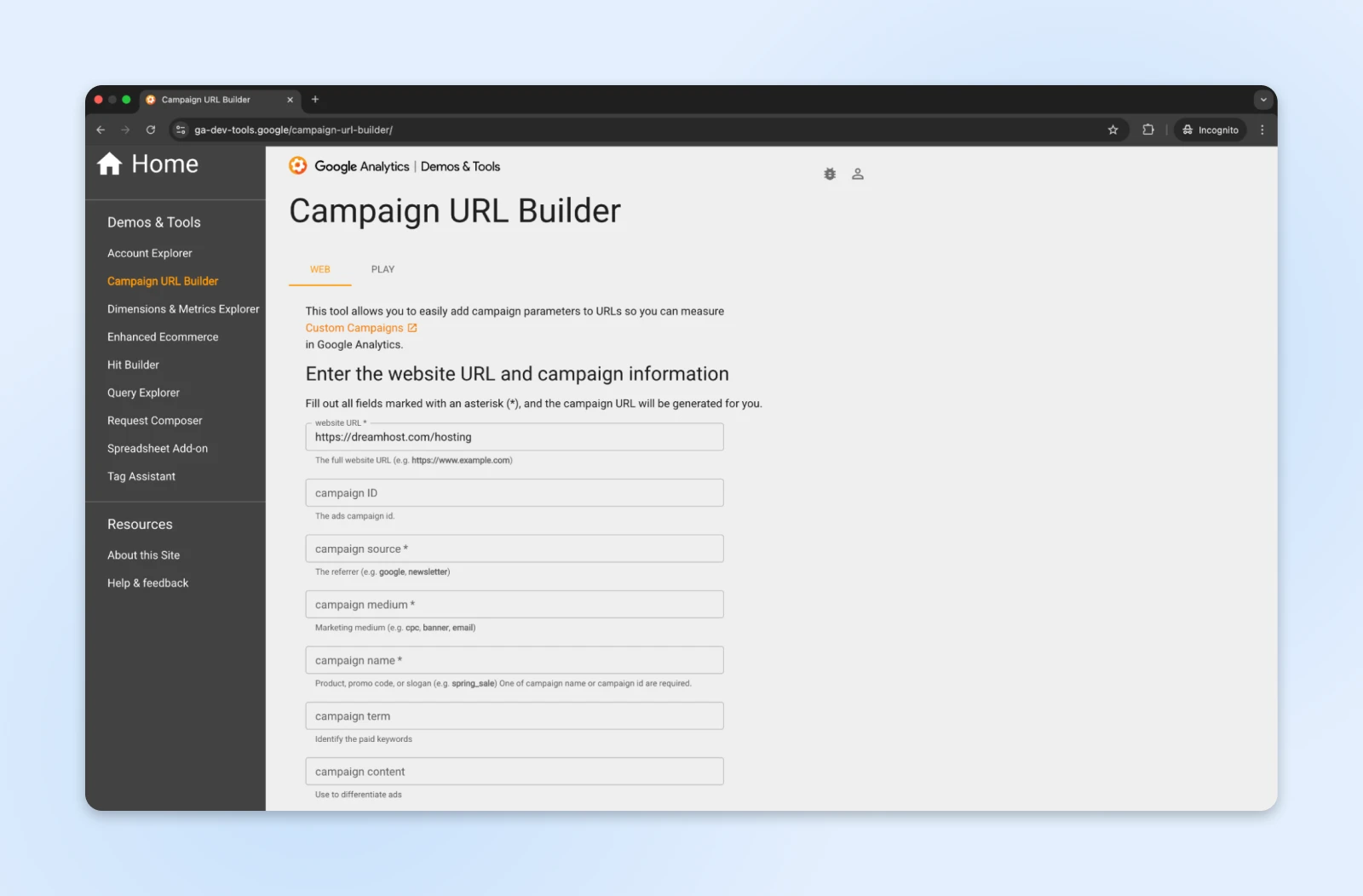
For a simpler, more accurate process, try a free UTM builder tool such as Google’s Campaign URL Builder. Here’s the whole workflow:
This makes the process easy and error-free. One heads-up: this builder is for website links. If you’re promoting an Android app, Google provides a separate Play Campaign URL Builder for app campaigns instead.
4. Test your links
Before deploying your UTM-tagged URLs, test them to make sure they direct users to the correct page and that your analytics platform records the parameters accurately.
How? Just click on the link and see if the click shows up in your analytics dashboard with the parameters as you’ve set them.
What if the tagged visit doesn’t show up? Work through three checks before assuming the link is broken:
Where should you use UTM parameters?
Anywhere you place a link outside your own website. The usual channels, with a sample tag set for each:
- Email: “utm_source=newsletter&utm_medium=email”
- Organic social: “utm_source=instagram&utm_medium=social”
- Paid social: “utm_source=facebook&utm_medium=paid_social”
- Paid search: “utm_source=google&utm_medium=cpc&utm_term=best_hosting”
- Partner, influencer, and affiliate links: “utm_source=partner_name&utm_medium=referral”
- Business-profile listings: “utm_source=google_business&utm_medium=organic”
How to analyze and make sense of UTM data
Once you’ve implemented UTM parameters in your marketing links, the next step is to analyze the collected data to gain actionable insights. Here’s how to effectively interpret UTM data:
Step 1: Access your analytics platform
Begin by logging into your web analytics tool, such as Google Analytics. Navigate to the section where campaign data is displayed. One quirk worth knowing up front: GA4 omits UTM values from the “Landing page + query string” and “Page path + query string” dimensions, so don’t hunt for your tags in page-level reports. They populate the “Page location” dimension instead, per Google’s URL builders documentation.
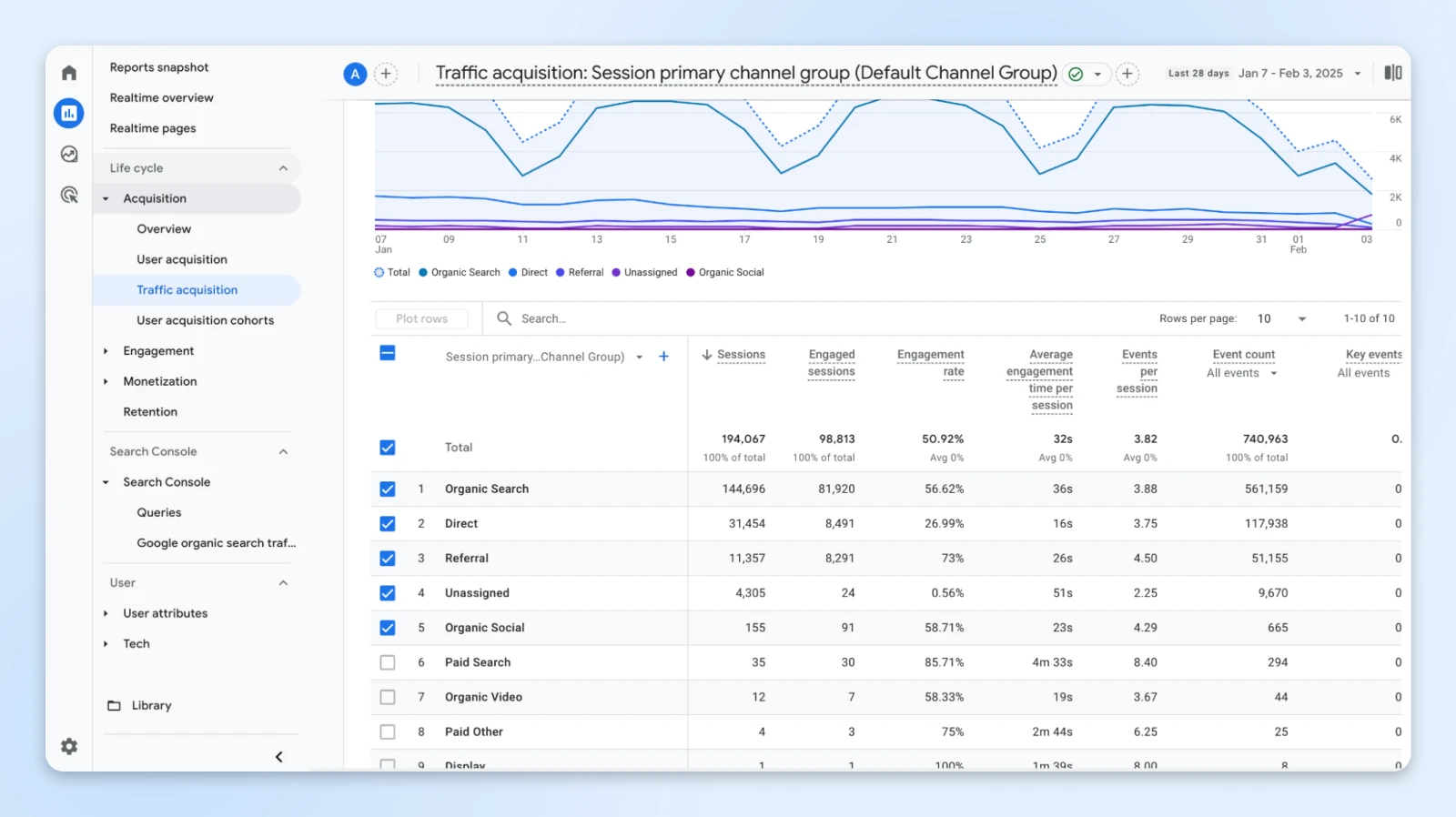
In Google Analytics 4 (GA4), you can find this under Acquisition > Traffic acquisition.
Step 2: Customize your reports
To focus on UTM parameters, customize your reports.
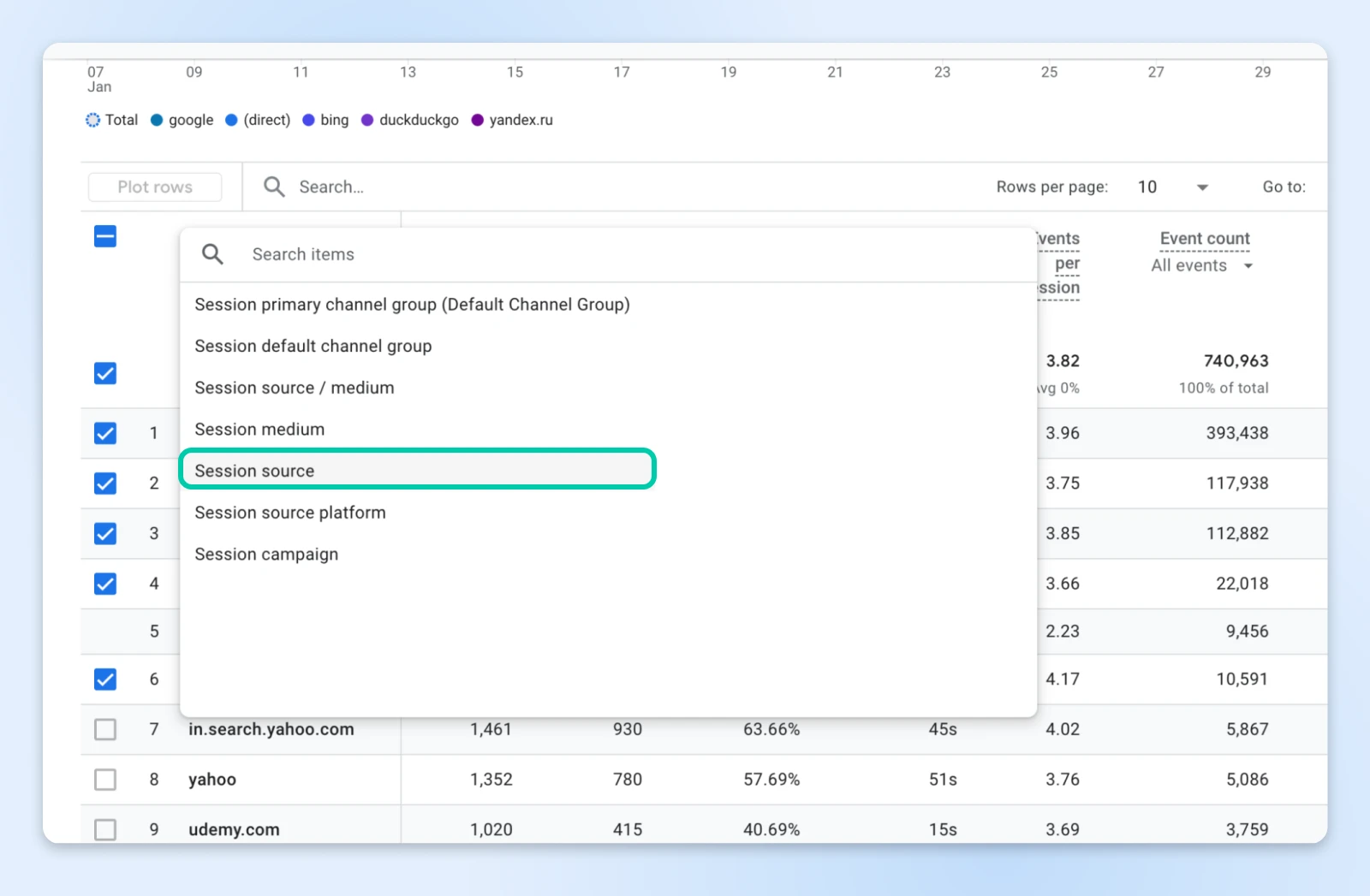
Primary dimension: Set this to “Session source” to view the origin of your traffic.
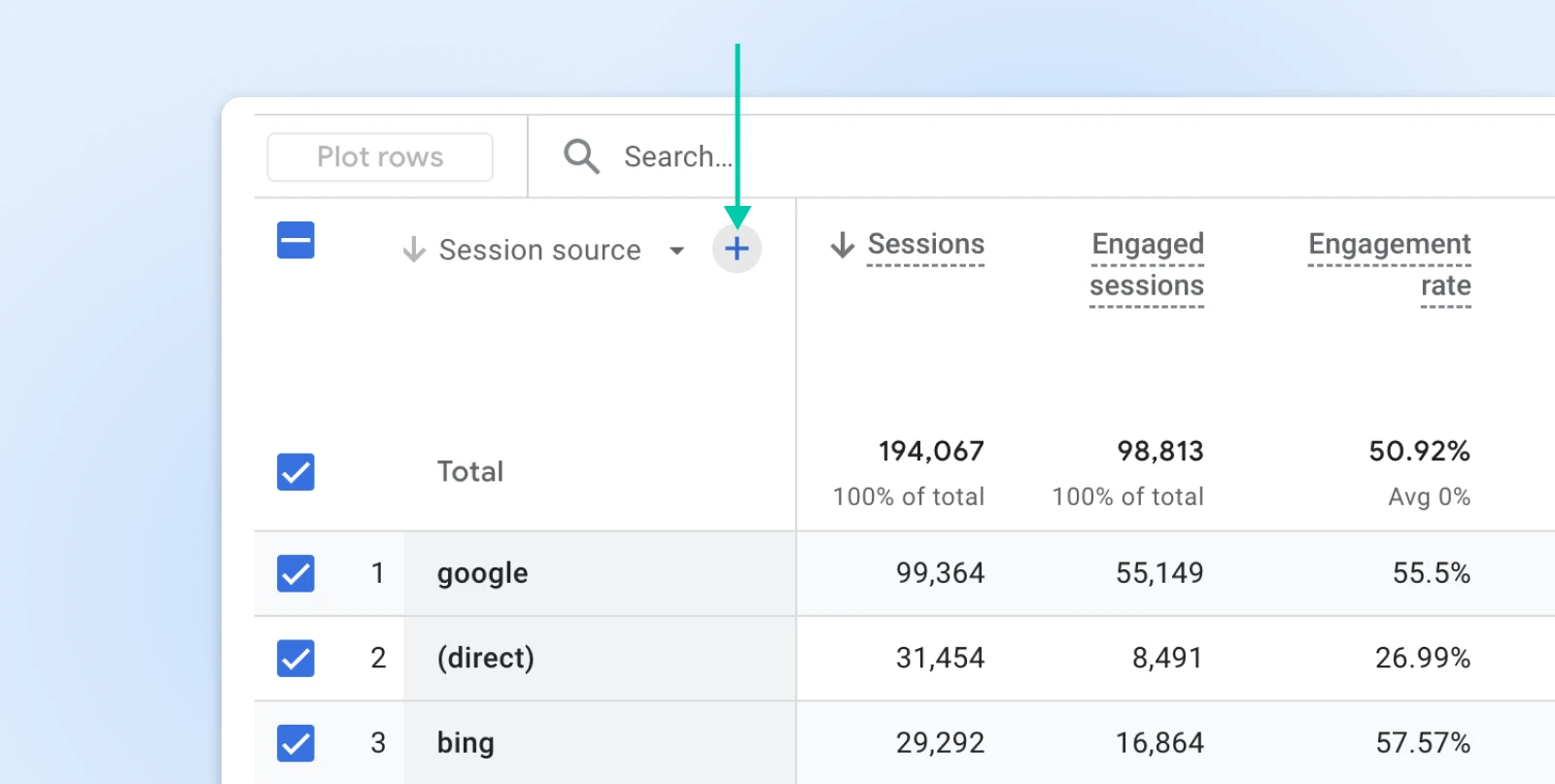
Secondary dimension: Add Campaign to see which campaigns are driving traffic.
Additional filters: Include filters for “Term” and “Content” if you’ve used these parameters, allowing for a more granular analysis.

Step 3: Evaluate key metrics
Analyze the following website metrics to assess campaign performance:
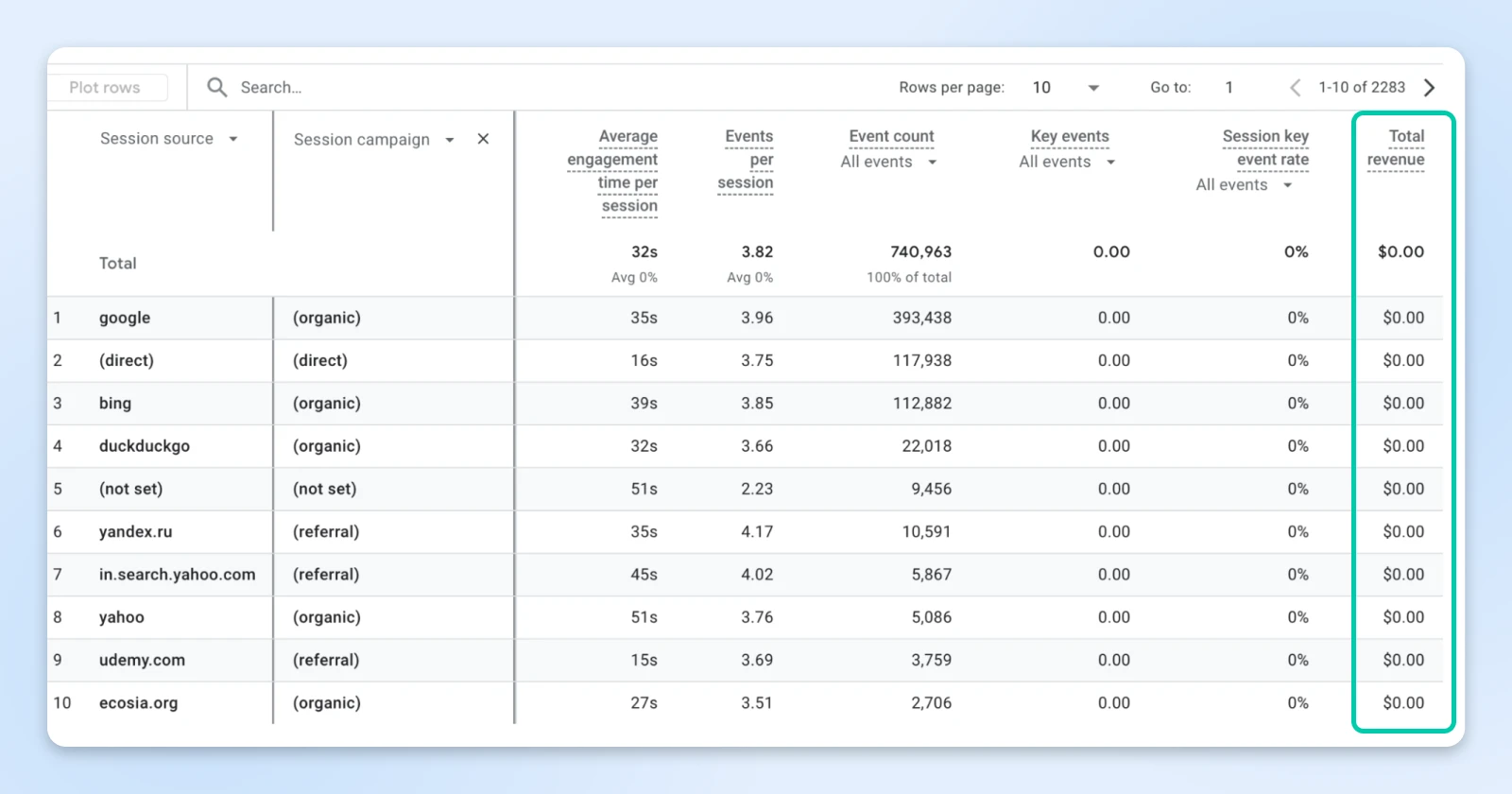
- Sessions: The number of visits initiated from each source/medium.
- Bounce rate: The percentage of sessions that weren’t engaged — in GA4, that means sessions of 10 seconds or less with no key event and fewer than 2 pageviews, per Google Analytics Help. A high rate may indicate irrelevant traffic.
- Conversion rate: The percentage of sessions that completed a desired goal, such as making a purchase or signing up for a newsletter.
- Average session duration: The average time users spend on your site; longer durations often suggest higher engagement.
Step 4: Compare performance across campaigns
With this data in hand, you can identify which campaigns, sources, or mediums are most effective.
For instance, you might discover that email campaigns (“utm_medium=email”) have a higher conversion rate compared to social media campaigns (“utm_medium=social”), informing your future marketing strategies.
When you combine this information with the number of sessions, conversions, and revenue values (if you’ve integrated payments data with Google Analytics), it becomes clear what sources are generating value for the business and which ones need to be improved.
Step 5: Find areas for improvement
This brings us to the final step.
If certain campaigns show high bounce rates or low conversion rates, start digging into them to understand what’s going on.
Some important factors, such as landing page relevance, audience targeting, and the clarity of your call-to-action, can all affect conversions.
Pro tips for effective UTM parameter management
UTMs are easy to create — and they’re just as easy to get wrong.
Think about it: if someone accidentally types “utm_source” as “utmsource,” you’ve lost the ability to track that link since Google cannot recognize that UTM parameter.
Develop a consistent naming convention
Suppose you’re comparing how CTA buttons perform across your email campaigns. For the data to get pulled together correctly, every tagged link needs to follow a standardized naming convention.
If someone uses “utm_content=headerbutton” and another person uses “utm_content=header_button,” you’ll have a hard time merging the data and making sense of it.
To prevent that, establish a standardized approach for naming your UTM parameters to ensure consistency and accuracy in your data.
For example, use “email” for the “utm_medium” parameter every time, and decide whether to name the source “newsletter” or “mailchimp” under “utm_source.” Whatever you pick, apply it uniformly across all campaigns. Consistency prevents data fragmentation and helps with a more straightforward analysis.
There’s a bigger reason to standardize than tidy report rows: GA4 maps your “utm_source” and “utm_medium” values onto its Default Channel Groups (and any Custom Channel Groups you’ve built). Recognized values like “email,” “cpc,” or “paid_social” land traffic in the right channel; values GA4 doesn’t recognize get miscategorized or dumped into “Unassigned.” Google’s UTM best practices name accurate channel grouping as a core reason to standardize your UTM strategy in the first place.
Two more rules keep your data from splitting:
- Stick to lowercase. UTM values are case-sensitive: Google Analytics counts “utm_source=Facebook” and “utm_source=facebook” as two separate sources and splits your report rows between them. Google’s UTM best practices recommend all-lowercase values with identical spelling everywhere.
- Pick one separator. Underscores or dashes both work — just never mix them, or “spring_sale” and “spring-sale” become two different campaigns in your reports.
Use a UTM parameter builder
We’ve talked about using Google’s Campaign URL Builder. Other similar tools like utmbuilder.net and utmbuilder.com help you create URLs with UTM parameters efficiently.
While it’s not necessary to use these tools, they help you maintain consistency and make sure there are no errors in the created UTM links. If you run paid campaigns, also check whether your ad platform supports dynamic UTM parameters — macros that auto-fill values like the campaign name, which Google’s UTM best practices recommend to avoid manual-entry errors.
Working from a long campaign list? An AI assistant can batch-generate the tagged URLs for you, or audit an existing tracking sheet for naming inconsistencies. Just have a human spot-check the output against your naming convention before anything ships.
Maintain a centralized tracking document
Keep a shared spreadsheet or database where all UTM-tagged URLs are recorded. Include details such as the campaign name, parameters used, creation date, and the team member responsible.
Here’s an example of the type of sheet you can create.
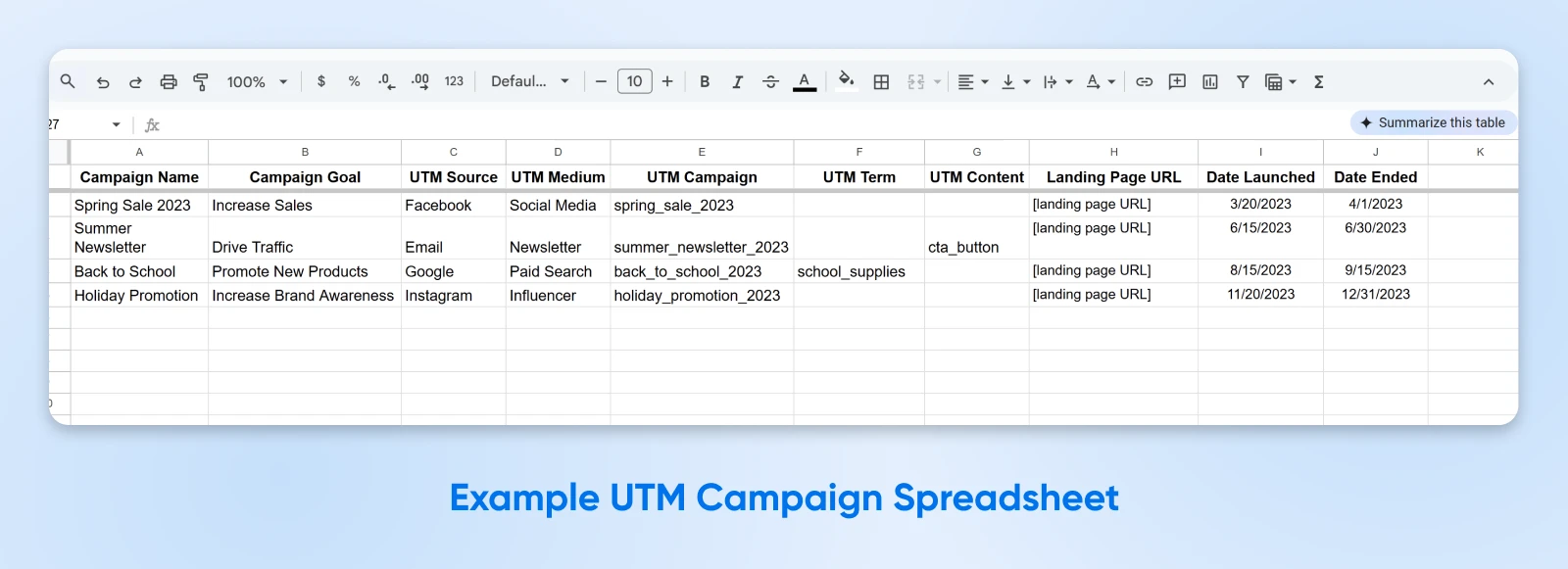
Go further and create dropdowns for each of the UTM parameters so your team can only pick from the standardized parameters instead of using custom-made ones for each campaign.
Test your UTM-tagged links before deployment
Before launching your campaigns, thoroughly test all UTM-tagged links to ensure they direct users to the correct landing pages and that the parameters are accurately captured in your analytics platform. You don’t want misconfigured UTM URLs floating around while you wait for data to show up. And watch for tags you didn’t add: if you copy a URL from your browser or a previous campaign, strip any existing UTM parameters before re-tagging it for the new placement, or the old values will misattribute every click.
Avoid using UTM parameters for internal links
UTM parameters are designed for tracking external traffic sources.
Applying them to internal links overwrites the visitor’s original attribution data and skews your source reports.
Use alternative methods, such as event tracking, to monitor internal link performance.
Shorten lengthy URLs for a better user experience
Long URLs with multiple UTM parameters can appear cluttered and may deter users from clicking.
URL shortening services like Short URL, Bitly, and many others help you create cleaner, more user-friendly links without losing tracking capabilities.
Remember the DreamHost UTM link we created?
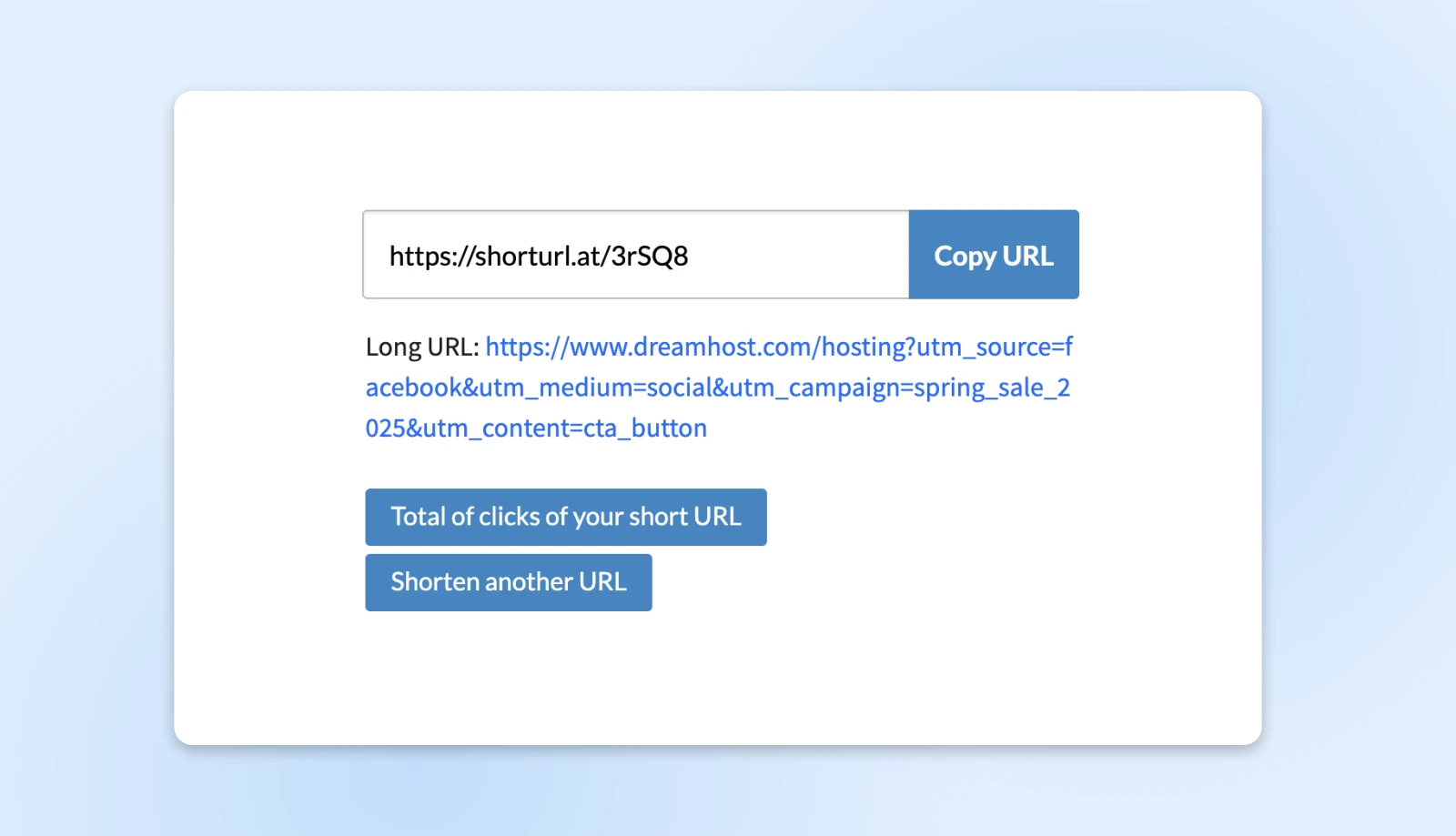
This is what it looks like when shortened.
UTM parameter FAQs
How do UTM parameters work?
UTM parameters travel with the URL when someone clicks your link. Google Analytics reads the values and credits the visit (and later sessions, until the attribution window expires) to the source, medium, and campaign you set. Check the results in the Traffic acquisition report.
Which UTM parameters are required?
Three: utm_source, utm_medium, and utm_campaign. Google says to always use those; utm_id, utm_term, utm_content, and utm_source_platform are optional extras you can add when they apply. Parameters you skip show up as “(not set)” in your reports.
What’s the difference between utm_source and utm_medium?
“utm_source” names the specific referrer; “utm_medium” names the channel type. The same page might carry “utm_source=mailchimp&utm_medium=email” in your newsletter and “utm_source=instagram&utm_medium=social” in your bio link. One tells you who sent the visitor; the other tells you how they arrived.
Are UTM parameters case-sensitive?
Yes. Google Analytics treats “utm_source=Facebook” and “utm_source=facebook” as two separate sources, so each report row shows only part of that channel’s traffic. Standardize on all-lowercase values with identical spelling, per Google’s UTM best practices.
Do UTM parameters affect SEO?
Not when they’re handled correctly. UTM parameters don’t change your page content, and search engines consolidate URL variants through canonicalization. Keep a canonical tag pointing to the clean URL (WordPress and most CMSs add one automatically), and tagged links won’t create duplicate-content issues or split your ranking signals.
How does HubSpot use UTM parameters to categorize traffic to your website?
HubSpot’s web traffic analytics checks the UTM parameters on the clicked URL against an ordered rule set to bucket each session: “utm_medium=social” with a recognized social network as the source counts as organic social, while values containing “cpc” or “ppc” count as paid.
Start small, win big with UTM links
Implementing UTMs is a long-term game. Don’t worry; you don’t need to start tagging every single link tomorrow.
But it’s one of the most accessible ways to upgrade your marketing from guesswork and intuition to a data-backed strategy.
So, here are your immediate next steps:
UTMs won’t fix your marketing strategy, but consistent tags can replace some guesswork with cleaner campaign data.
Did you enjoy this article?
